Open OnDemand
Table of contents
- Logging in
- Managing files
- Opening a shell
- Submitting and monitoring jobs
- Interactive applications
- VS Code tunnel
Open OnDemand and its interactive applications are beta features. Expect changes, and please report any problems you encounter.
Open OnDemand (OOD) is a web portal for Ada. From your browser you can manage files, submit and monitor jobs, open a shell, and launch interactive applications such as VS Code, Jupyter and RStudio that run on Ada’s compute nodes.
Logging in
Navigate to https://ood.middlebury.edu and log in with your Middlebury credentials. You need an Ada account and must be on campus or connected to the VPN.
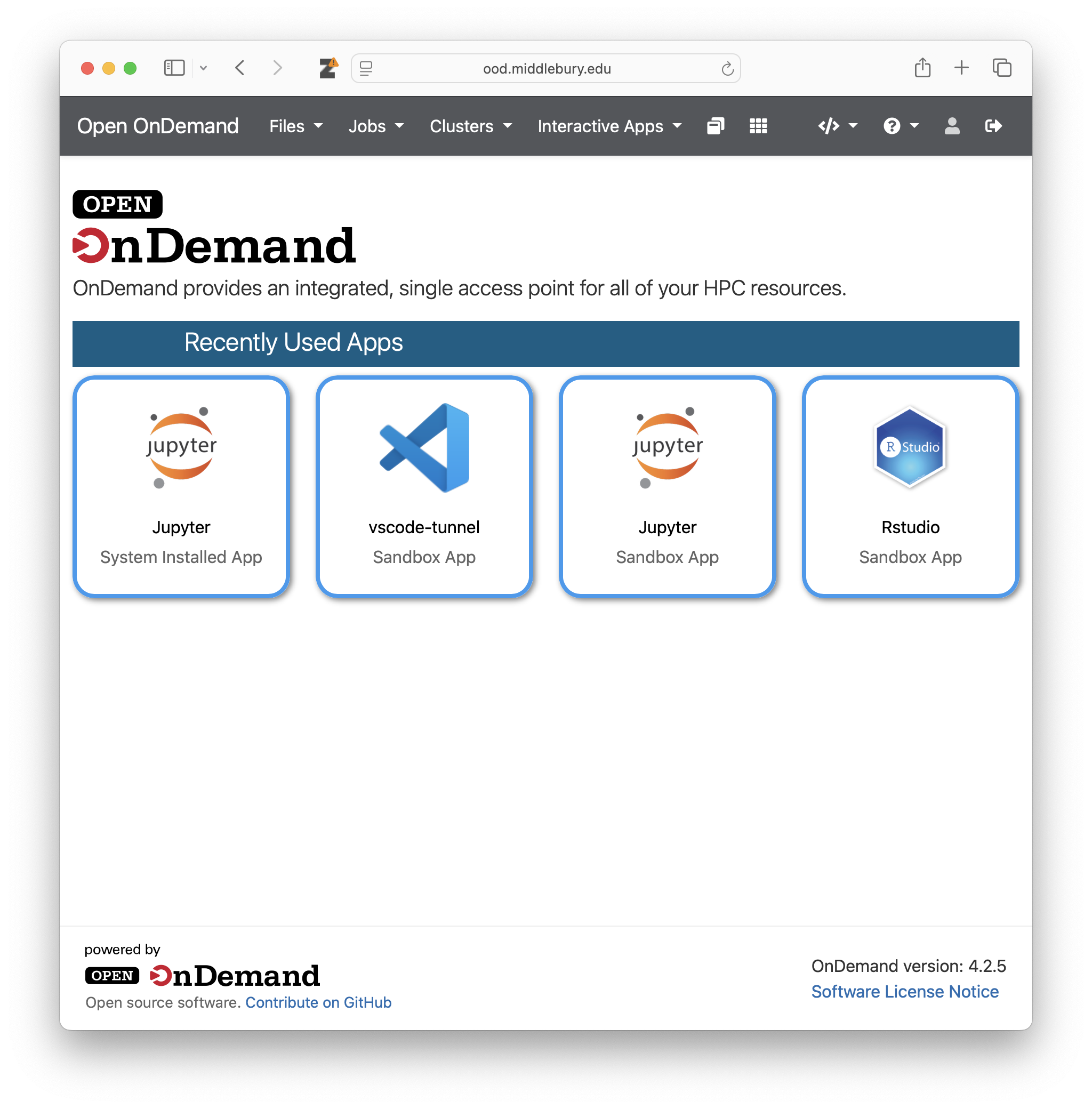
After logging in you will see the dashboard. The menu bar at the top provides access to OOD’s tools, described below.
Managing files
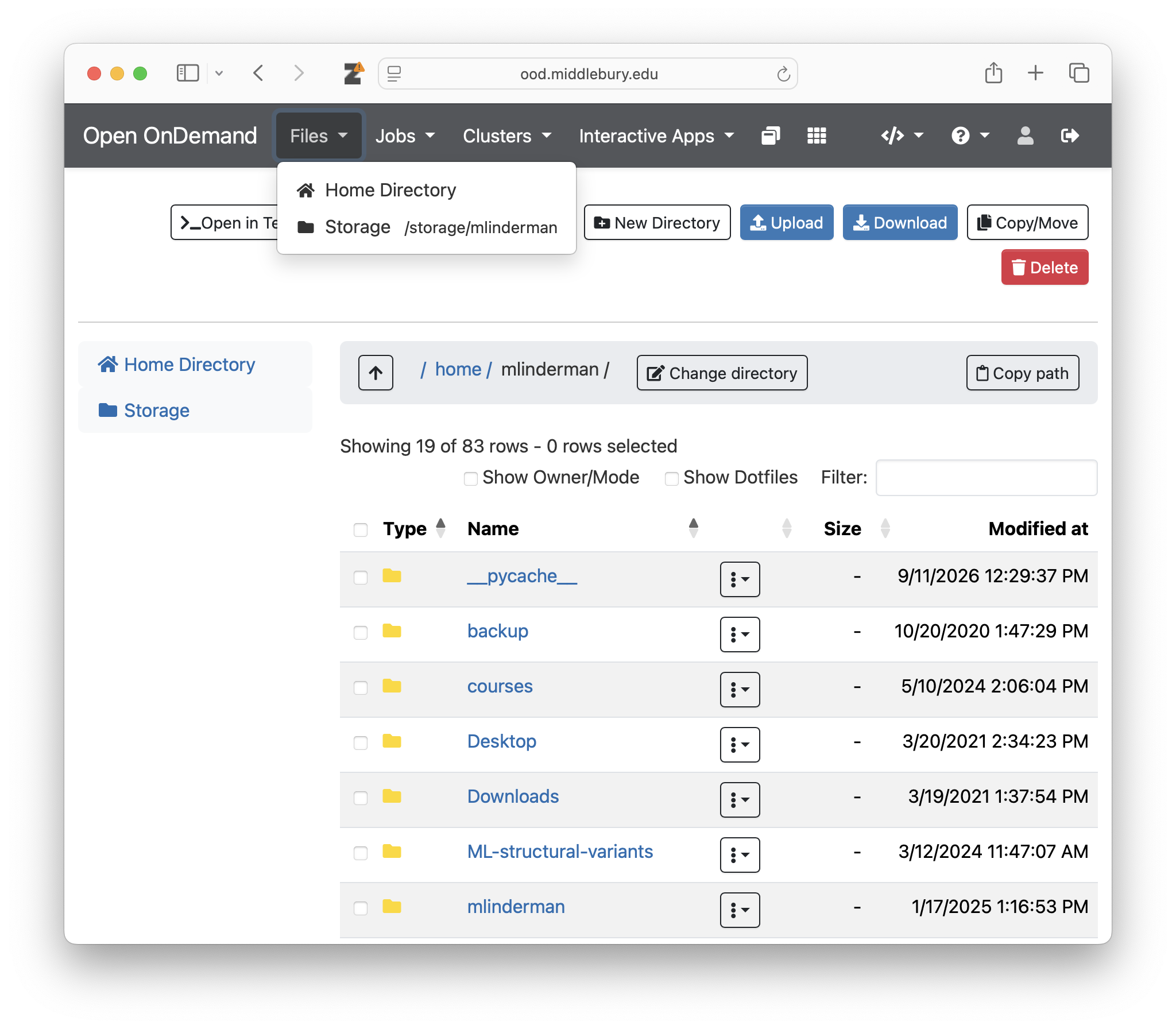
Files opens a file browser for your home directory, with a shortcut to your /storage/username directory (see File System for which to use). You can create folders, upload, download, rename, delete and edit files. Clicking Edit on a text file opens it in a browser-based editor.
The file browser is convenient for small files. For large datasets, use scp or Globus.
Opening a shell
Clusters > ada Shell Access opens a terminal on Ada’s head node in a new browser tab. It is equivalent to connecting with SSH, and the same best practices apply (please don’t run computationally intensive work on the head node).
Submitting and monitoring jobs
- Jobs > Active Jobs lists your queued and running SLURM jobs. Click a job for details or to cancel it.
- Jobs > Job Composer helps you create and submit batch jobs. Click New Job > From Default Template to create a simple job script, Open Editor (bottom right) to modify it, and green arrow button to submit for execution.
Interactive applications
Interactive applications (under Interactive Apps) run a program, like Jupyter, on a compute node as a SLURM job and connect you to it through your browser. The following applications are currently available:
| Application | What it provides | Details |
|---|---|---|
| vscode-tunnel | Your locally installed VS Code connected to a compute node | Below |
| Jupyter | JupyterLab or Jupyter Notebook with Python (and R) | Python & Jupyter |
| Rstudio | The RStudio IDE for R | R & RStudio |
Launching a session
- Select the application under Interactive Apps.
- Fill in the form (see below) and click Launch.
- You are taken to My Interactive Sessions. The session is “Queued” until SLURM finds the requested resources, then eventually “Running”.
- Once it is running, click the Connect button.
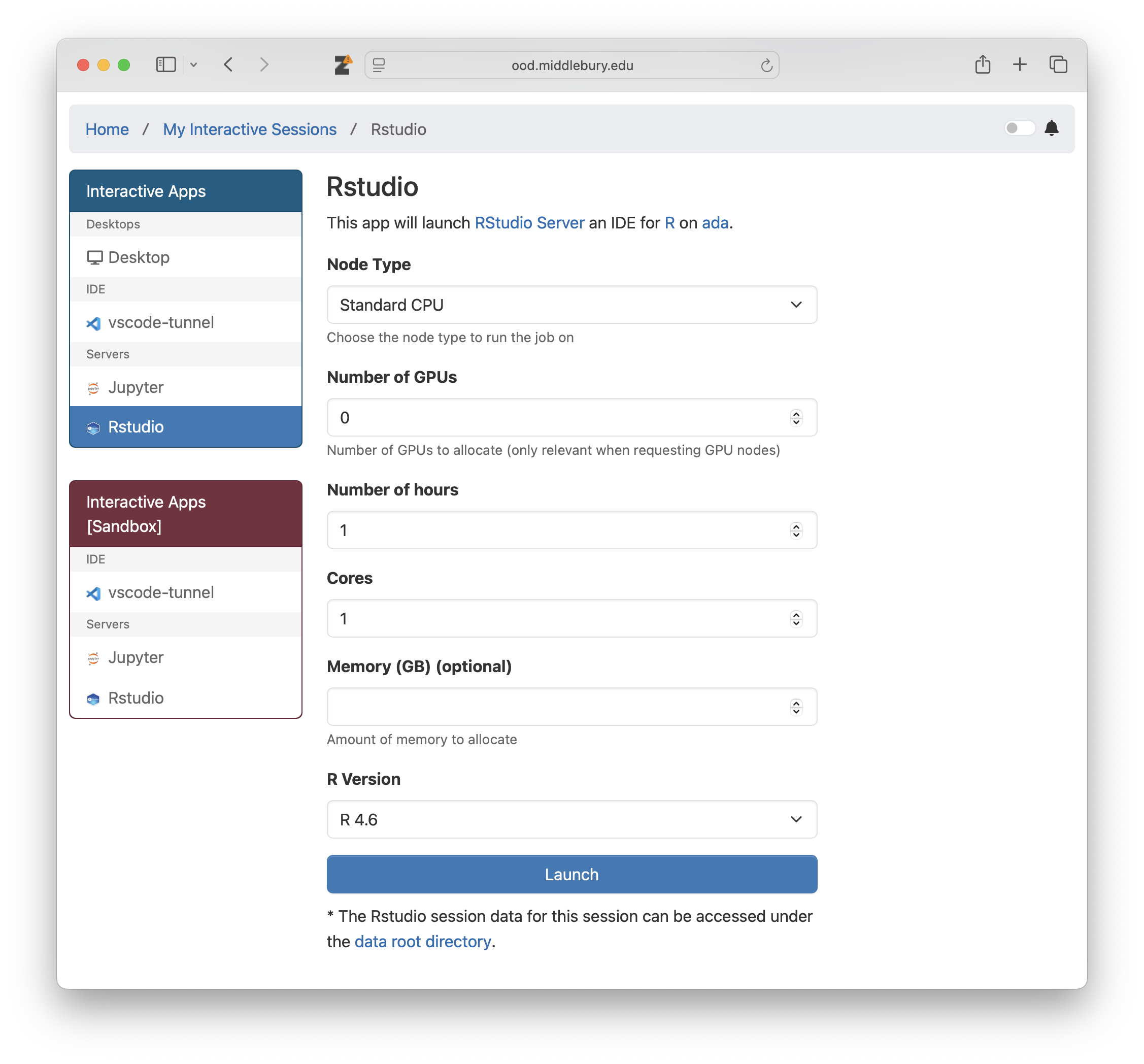
All of the applications share these form fields:
| Field | Description |
|---|---|
| Node Type | Standard CPU, High-memory CPU, or GPU. Choose High-memory only if you need more than 256 GB of memory and GPU only if you need GPU(s). |
| Number of GPUs | Only relevant if requesting GPU nodes. Request 1 unless your code can use multiple GPUs. |
| Number of hours | How long the session runs. The partition is chosen for you: up to 2 hours uses a “short” partition, up to 48 hours a “standard” partition, and longer the “long” partition (up to 7 days). Shorter sessions typically start sooner. |
| Number of cores | CPU cores for the session. More cores only help if your code uses them. |
| Memory (GB) | Optional. If left blank, you receive the SLURM default of 4 GB per core. |
Ending a session
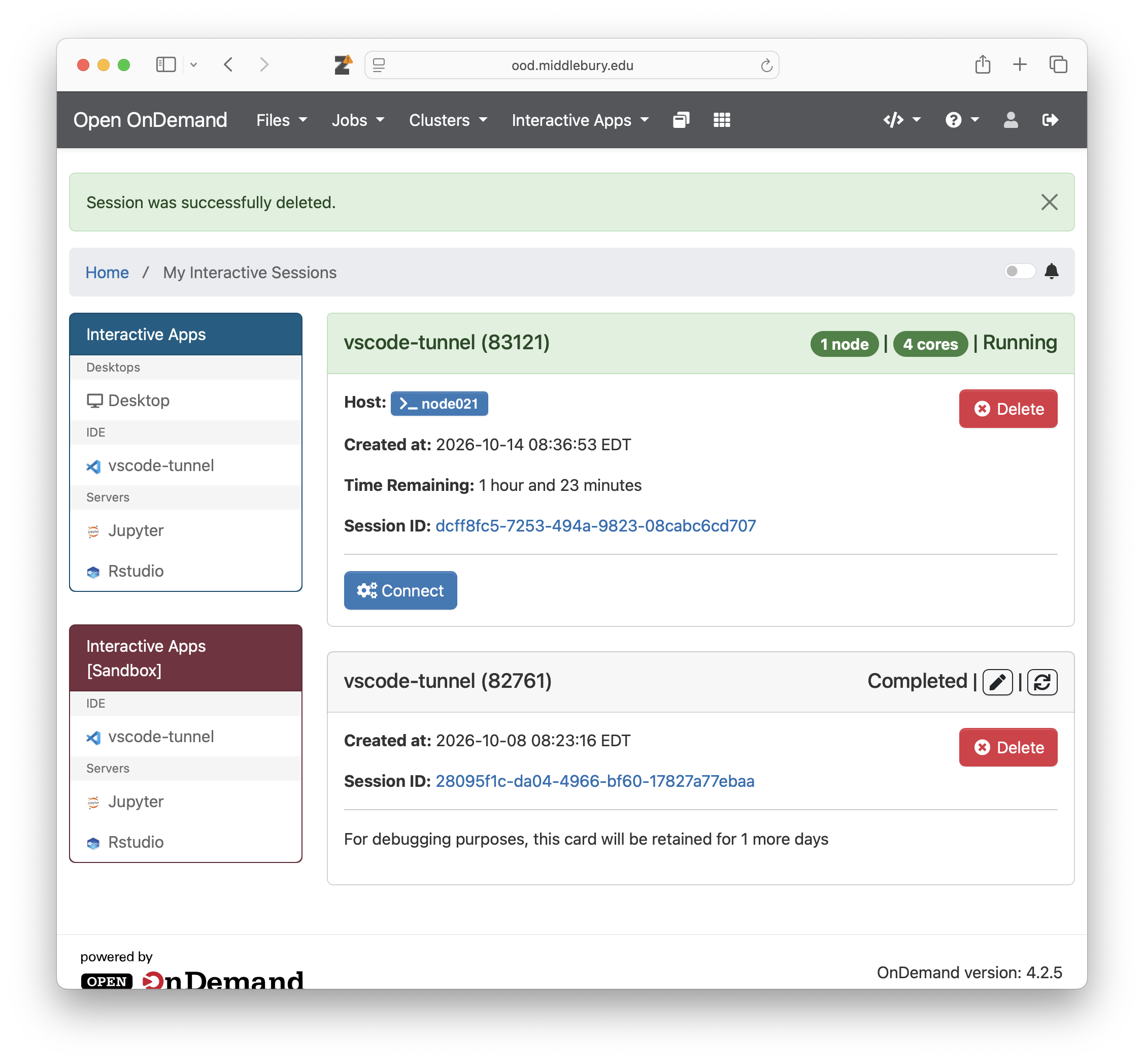
A session keeps running, and keeps its resources reserved, until its time runs out or you end it, even if you close the browser tab. When you are finished, click Delete on the session card so others can use those resources. Your files are not affected.
If a session fails to start
On the session card, click the Session ID link to open the session’s directory and view output.log, which records any errors.
VS Code tunnel
The vscode-tunnel application connects Visual Studio Code on your computer to a compute node. Everything you do in VS Code (terminals, running and debugging code, notebooks, extensions) runs on the compute node using the resources you requested.
Please do not use the VSCode Remote SSH extension to run VSCode sessions on Ada (which run on the head node), instead use the tunnel application to run on one of the compute nodes.
Before you start, you will need:
- VS Code installed on your computer, with the Remote - Tunnels extension.
- A GitHub account, which VS Code uses to securely connect to the tunnel.
To start a tunnel:
- Launch vscode-tunnel from Interactive Apps, choosing the resources you need.
- When the session is running, click Connect. A terminal opens in a new browser tab.
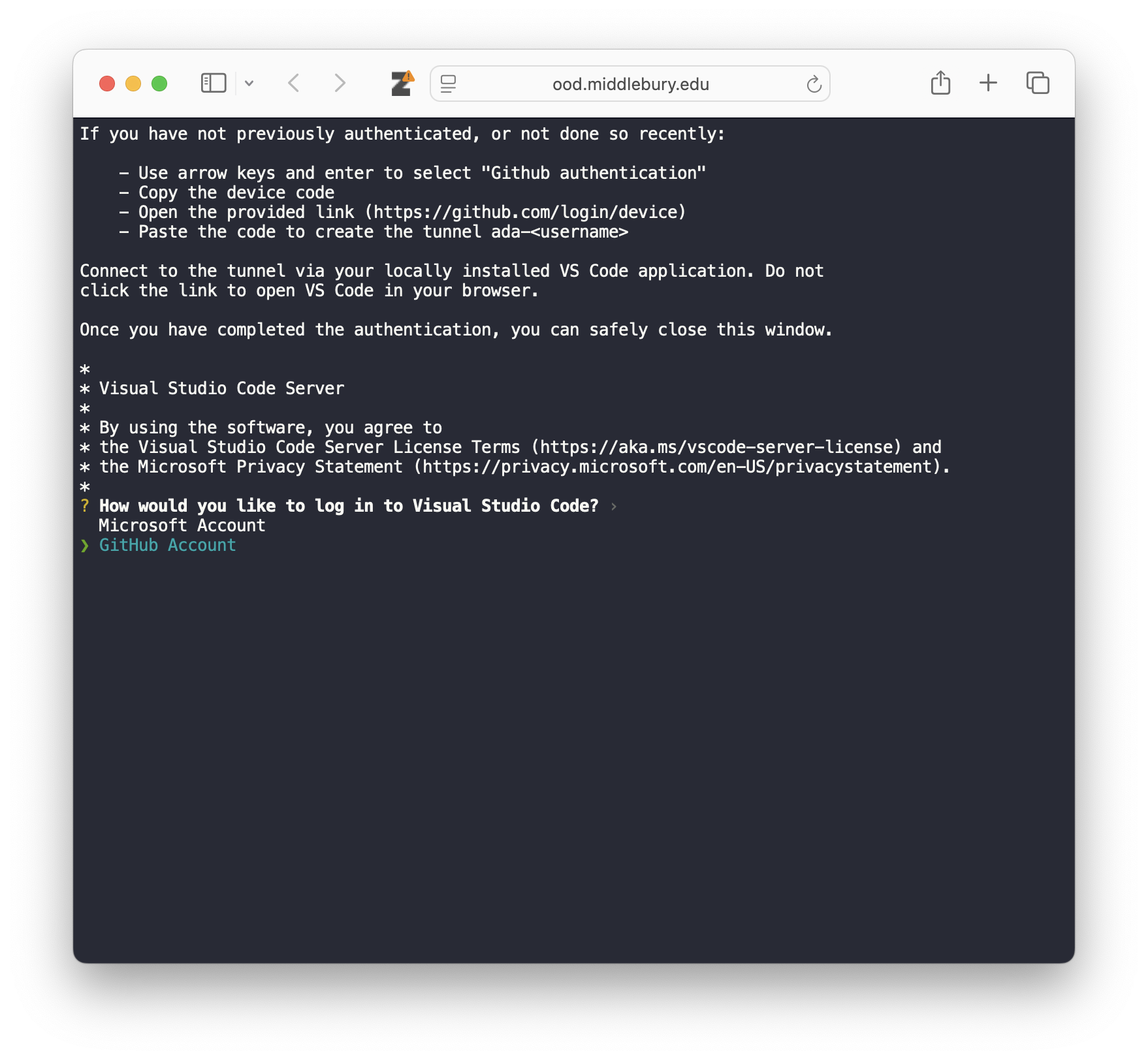
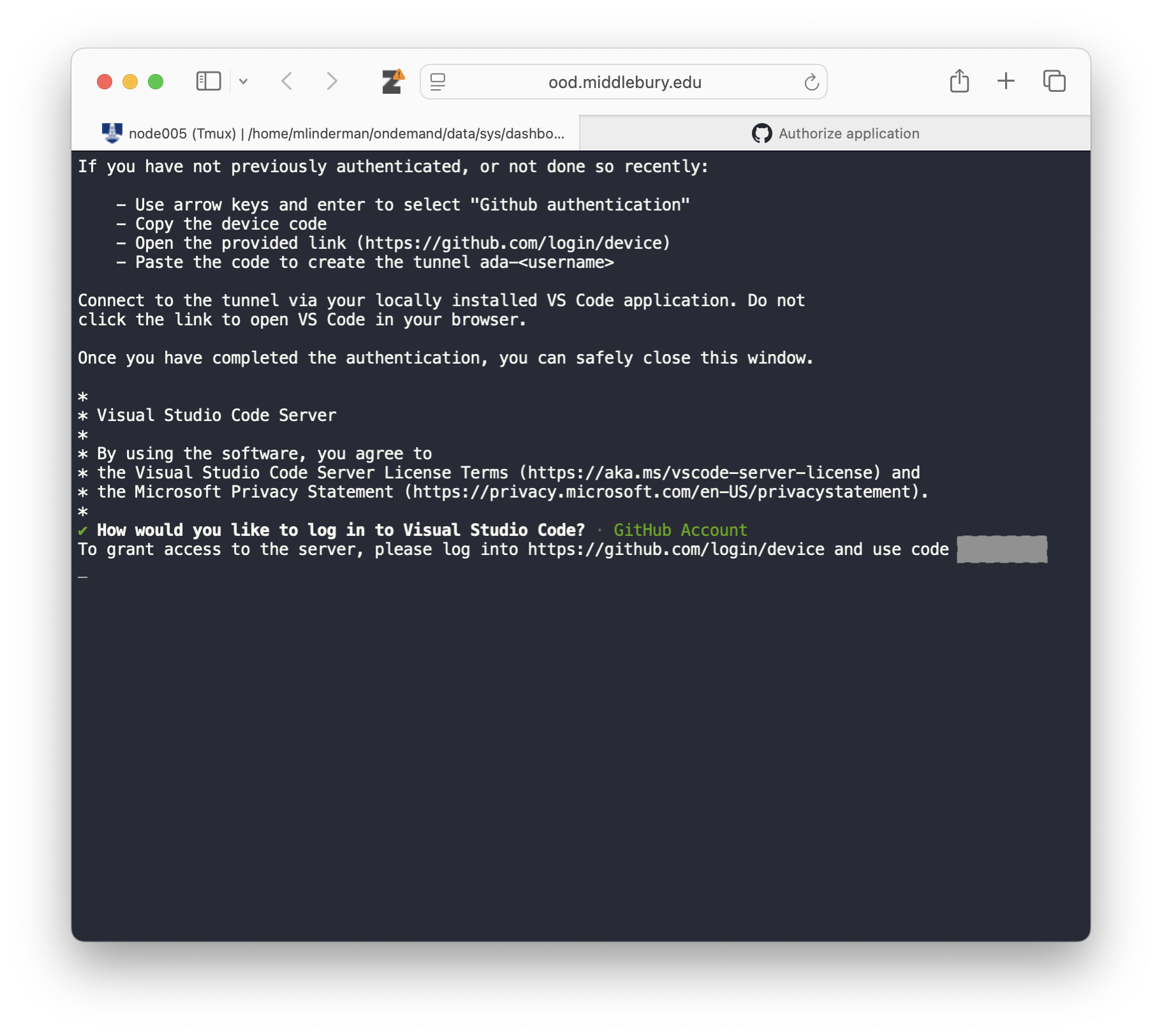
- If prompted, use the arrow keys to select GitHub Account and press enter. Open https://github.com/login/device, log in to GitHub and enter the code shown in the terminal. You typically only need to do this the first time, or if you have not used the tunnel recently.
- Once the terminal reports the tunnel is ready, you can close the browser tab. The tunnel keeps running. Don’t use the
vscode.devlink shown in the terminal; connect with your local VS Code instead.
To connect from VS Code:
- Open the Remote Explorer in VS Code’s sidebar and select Tunnels from its drop-down (or run “Remote-Tunnels: Connect to Tunnel…” from the Command Palette).
- Sign in with the same GitHub account if asked.
- Connect to the tunnel named
ada-username(your Middlebury username).
Each user has a single tunnel name, so run only one vscode-tunnel session at a time. However, each tunnel supports multiple VSCode windows, i.e., you can work on multiple projects with one tunnel. When you are done, close the remote window in VS Code and Delete the session in OOD.