File System and Copying Data
Table of contents
- Ada storage
- Copying data from the command line
- Copying data with Open OnDemand
- Copying data with Globus
Ada storage
Ada storage is not backed-up. Users are responsible for backing-up their own data as needed.
Summary of storage currently available on Ada (replace “username” with your Middlebury username):
| Location | Directory | Use | Environment variable |
|---|---|---|---|
| Home | /home/username |
Storing scripts, code, executables, and small configuration files. | $HOME |
| Storage | /storage/username |
Working data of any size, and especially all large datasets | $STORAGE |
| Local | /local/username |
Temporary files only needed during job execution | $JOB_TMPDIR (for job-specific temporary directory) |
Each user has home and storage directories on the shared high-speed storage (available on each node). The home directory (at /home/username or via the $HOME environment variable) is intended for storing scripts, code, executables, and small configuration files. Larger data should be placed in the storage directory at /storage/username (also accessible via the $STORAGE environment variable).
Jobs that create temporary files only needed during that job can use local SSD-based temporary storage on each node at /local/username. Users are encouraged to use this temporary storage via $JOB_TMPDIR, a job-specific temporary directory automatically created and cleaned up by the SLURM queuing system. Since it doesn’t require network communication, the local temporary storage can be more efficient for small or frequently accessed temporary files. Note that the total amount of local storage per node is typically 250-450GB, and is shared with other users. If your job uses a substantial amount of temporary space, e.g., more than 1G, you can use the localdisk SLURM generic resource to specify the necessary space in MB (SLURM will only co-schedule jobs up to the available local disk space). For example, sbatch --gres=localdisk:128K ... would submit a job that uses 128GB of local temporary storage (128*1024 MB).
Copying data from the command line
You can download data from external resources directly to Ada via the wget or curl tools (see linked guide). To copy data between your personal computer and Ada you can use the scp command line utility or programs (like FileZilla or Cyberduck) that support scp or sftp (see linked guide). For example, to copy a file from your personal computer to Ada, execute the following in a local terminal (e.g., on your laptop or desktop computer), where username is your Middlebury username, local_file is the path to the local file on your personal computer and remote_destination is the desired location on Ada, e.g., /storage/username.
scp local_file username@ada.middlebury.edu:remote_destination
You can copy files from Ada to your personal computer by reversing the order of the arguments to scp, e.g.,
scp username@ada.middlebury.edu:remote_destination local_file
Copying data with Open OnDemand
Open OnDemand is a beta feature.
For small files, you can also use the Files tool in Open OnDemand to upload and download files through your web browser. For large datasets, use scp (above) or Globus (below).
Copying data with Globus
Using Globus is a beta feature that also requires enabling the Lmod module system. Do that first before proceeding with these instructions.
Globus is a managed data transfer service used by many universities, data providers, etc. Middlebury does not maintain a Globus server, but you can use Globus Connect Personal (GCP) to freely transfer data between Ada and other endpoints. By running GCP on Ada, you can expose that system as a private endpoint for data transfers.
As a pre-requisite you will need to create a free Globus account.
The first time you want to perform a transfer, you will need to set up GCP. Since the GCP process needs to remain running throughout any transfer, we suggest running it within a tmux session so it persists even if you log out, are disconnected, etc. Within your tmux session, load the globusconnectpersonal module, and run the setup program (without the GUI since this is happening in the terminal) as shown below. During setup, navigate to the provided link (truncated here), log in with your Globus credentials, authorize GCP and copy the provided authorization code back into the terminal.
[ada ~]$ module load globusconnectpersonal
[ada ~]$ globusconnectpersonal -setup --no-gui
Globus Connect Personal needs you to log in to continue the setup process.

We will display a login URL. Copy it into any browser and log in to get a
single-use code. Return to this command with the code to continue setup.

Login here:
-----
https://auth.globus.org/v2/oauth2/authorize[...]
-----
Enter the auth code:
Once you do so, you should see the ID for your newly created endpoint.
== starting endpoint setup


Input a value for the Endpoint Name: ada
registered new endpoint, id: [...]
setup completed successfully
By default GCP enables transfers to and from your home directory. You will likely want to expose other directories, such as your /storage directory. You can do so by editing ~/.globusonline/lta/config-paths as specified in the Globus documentation. For example, the user panther might edit the file like below, to allow their home directory (~/) and storage directory (/storage/panther) to not be shared (first 0) but be writable (second 1). Note, sharing is a subscription not supported at Middlebury, so the first number will always be 0.
~/,0,1
/storage/panther,0,1
When you are ready to start your first, or any future transfer, start the GCP process in the background (set by the trailing &) inside your tmux session.
[ada ~]$ globusconnect -start &
[1] 1530800
You should now be able to find your private endpoint (in this case named “ada”) in the Globus web application. As long as you are running GCP, you can initiate transfers to and from Ada via Globus.
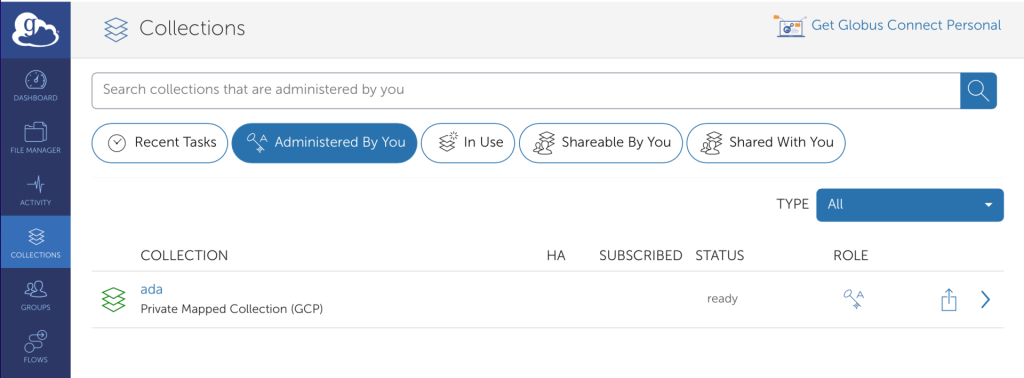
When you are done, stop GCP with
[ada ~]$ globusconnect -stop
Globus Connect Personal is currently running and connected to Globus Online
Sending stop signal... Done
Example of transferring data to Ada
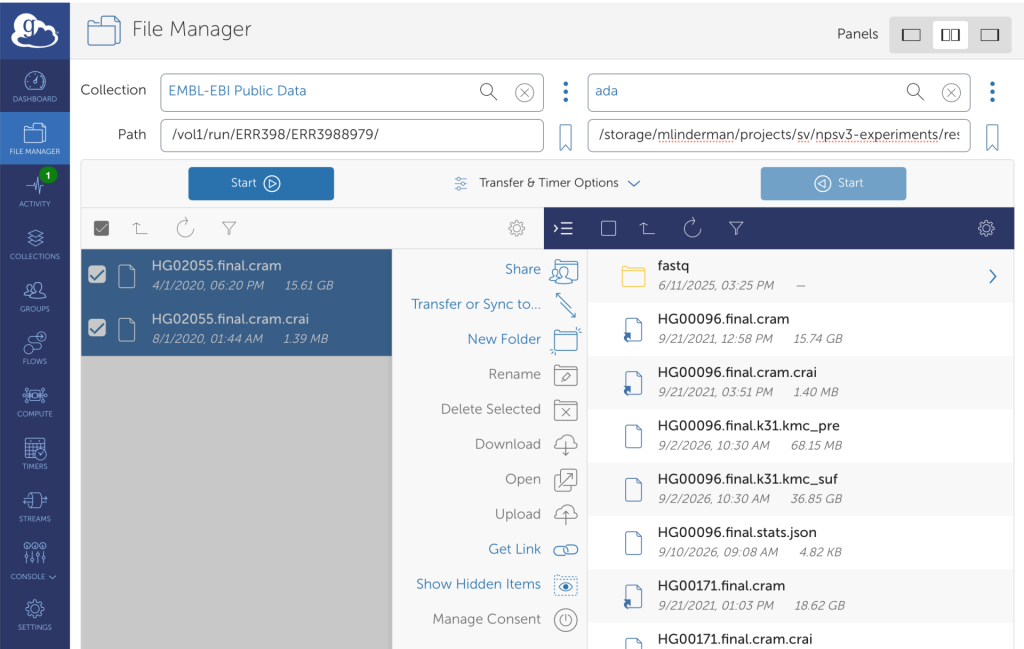
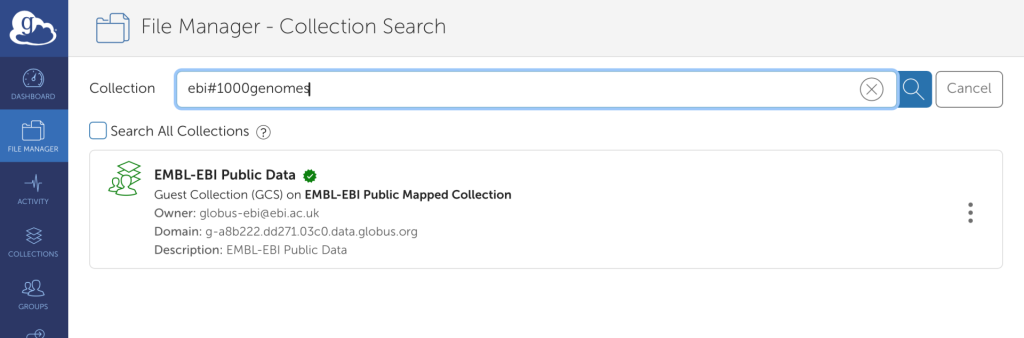
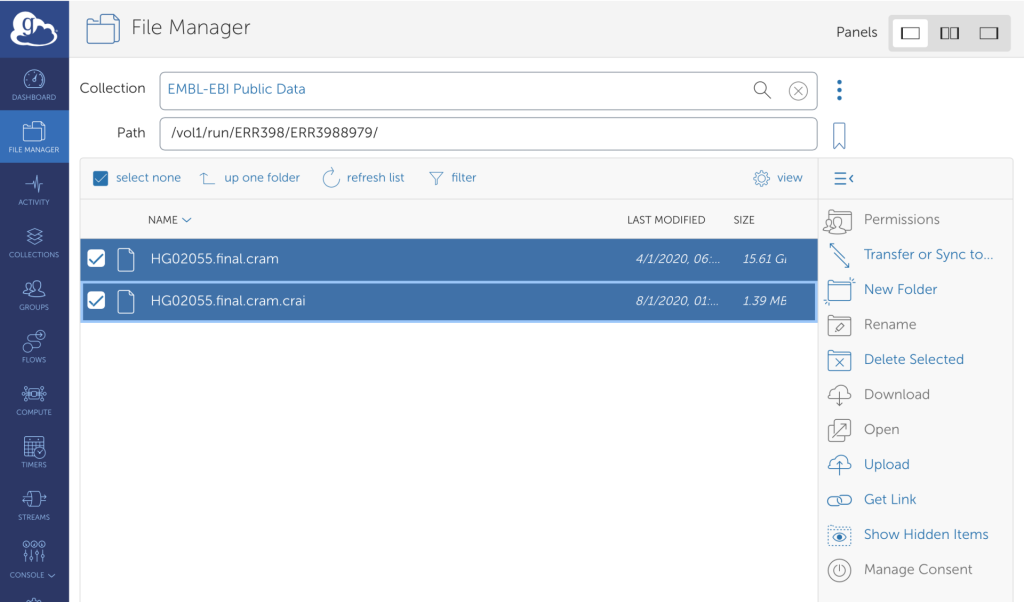
Here I want to download public genome sequencing data from the European Bioinformatics Institute. I start by finding the relevant public collection and then the files of interest within that collection.
I then initiate a transfer by clicking on “Transfer or Sync to…”
and selecting the local destination in the private endpoint I created with GCP, starting the transfer. Globus will initiate the transfer in the background as long as GCP is running.