Getting Started
Table of contents
- Request Access
- Structure of the compute cluster
- Logging In
- Getting started with Open OnDemand
- Accessing software via Environment Modules
- SLURM job queueing system
- Getting started FAQ
Welcome to the Ada HPC cluster! This guide is intended to get you started working with Ada (even if you have never worked with an HPC system before). After reviewing this guide, check out the more detailed documentation.
Request Access
Request an account via this form. As part of that request you will be asked to agree to the cluster’s governing policies.
Structure of the compute cluster
When you connect to Ada you are actually connecting to the “head node”. The head node is used to submit jobs, manage files, and perform other administrative tasks. It is not meant for running computationally intensive work. Computationally intensive work is performed on one or more of the compute nodes (named node002, node003, …). You will not directly interact with the worker nodes, instead Ada’s job scheduling system, SLURM, distributes tasks to those nodes on your behalf. All nodes share the same storage system, i.e., files you create in your home directory or the /storage directory on the head node are accessible on the worker nodes and vice-versa.
flowchart TD
    user([You]) -- SSH --> head["<b>Ada</b><br/>head node"]
    bus["<b>Internal network</b>"]
    n2["node002"]
    n3["node003"]
    nn["node004, ..."]
    storage[("Shared storage<br/>/home, /storage")]
    head <--> bus
    bus <--> n2
    bus <--> n3
    bus <--> nn
    bus <--> storage
    style bus fill:#eee,stroke:#666,stroke-width:3px
Logging In
Ada is physically located off campus. You interact with Ada remotely, either with SSH (described here) or through the Open OnDemand web portal. SSH (Secure Shell) is a secure protocol for executing commands on and otherwise interacting with a remote computer. SSH will connect you to a shell session, a text-based interface for working with Ada. This guide assumes basic familiarity with executing commands in the shell. If this is your first time working with the shell, Software Carpentry offers a helpful introduction.
Both OSX and recent Windows versions have SSH clients built-in. On OSX open the Terminal application, on Windows open PowerShell or the Command Prompt. Execute the following command to connect to Ada (replacing username with your Middlebury username):
ssh username@ada.middlebury.edu
The first time you connect, you may be prompted to confirm the server fingerprint; answer “yes” and then hit enter. Enter your Middlebury password when prompted. Note that no characters are shown when you type your password as a security measure, but your password will be received.
Ada is only accessible on campus or when connected to the VPN.
See Connecting to the Cluster for more details on SSH and other ways to connect to Ada.
Getting started with Open OnDemand
Open OnDemand and its interactive applications are beta features.
Open OnDemand (OOD) lets you use Ada from your web browser, without needing the command line. Go to ood.middlebury.edu and log in with your Middlebury credentials (like SSH, this requires being on campus or connected to the VPN). From the dashboard you can:
- Manage files: browse, upload, download and edit files in your home and storage directories (Files).
- Manage jobs: view and cancel your SLURM jobs (Jobs > Active Jobs), and create and submit job scripts (Jobs > Job Composer).
- Open a shell on the head node (Clusters > ada Shell Access).
- Launch interactive applications that run on a compute node (Interactive Apps):
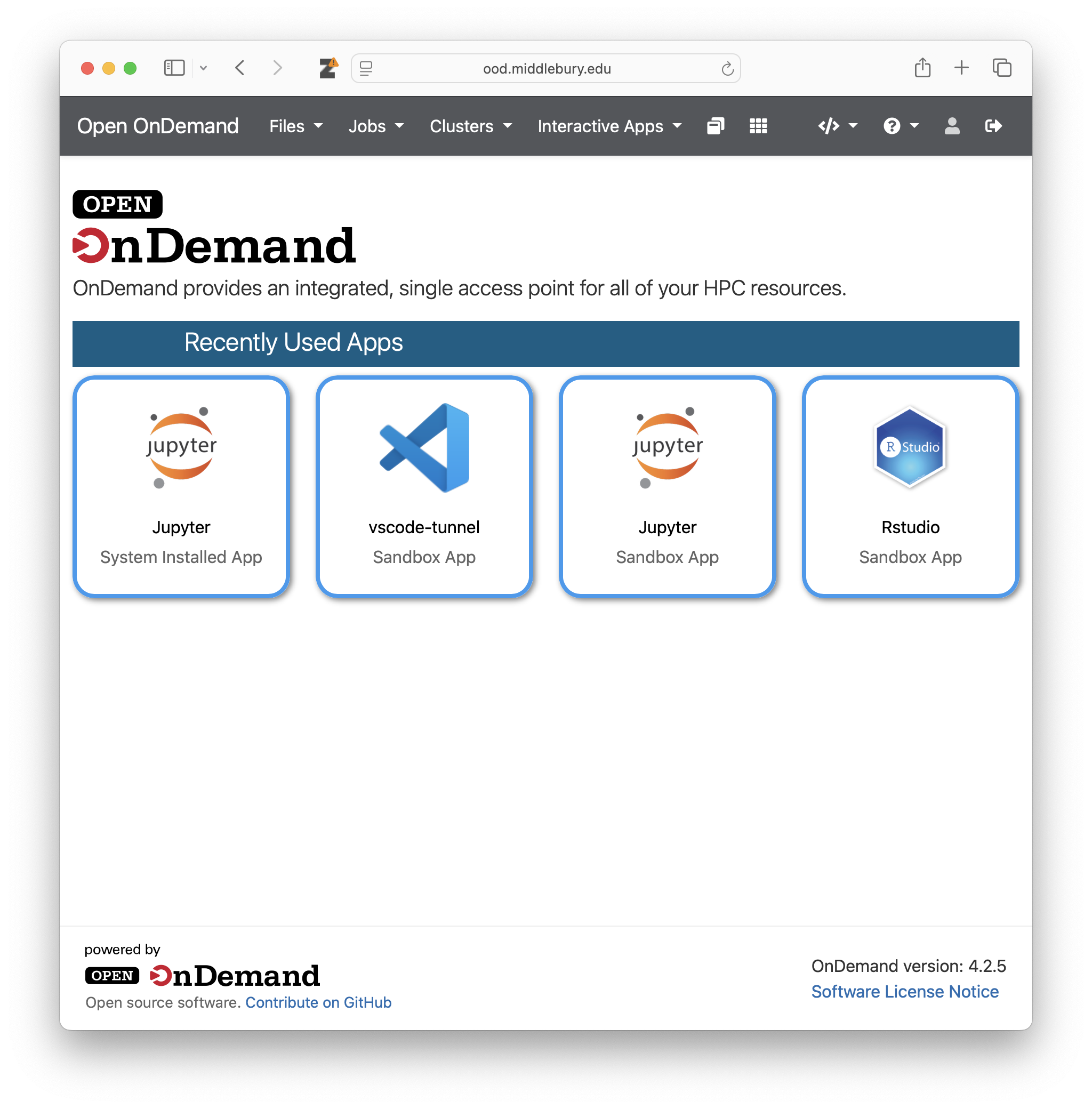
Each interactive application session is a SLURM “job” as described below. You choose the resources required via an online form and OOD submits the job for you. The session runs until its time is up or you click Delete, even if you close the browser tab, so delete sessions when you are finished. See Open OnDemand for more details.
Accessing software via Environment Modules
Environment modules allow you to dynamically modify your environment by loading and unloading software packages. The software you want to use may already be installed on Ada, but you will need to “load” its module to use it. The purpose is to ease management of different versions of the same software. Common operations:
- List available modules:
module avail - Load a module:
module load software_name/version, e.g.,module load R/4.4.2 - Unload a module:
module unload software_name/version
See Software on the Cluster for more on modules, Python, R and installing your own software.
SLURM job queueing system
SLURM (Simple Linux Utility for Resource Management) is a job scheduler used to efficiently manage and fairly allocate resources on the cluster. SLURM allows you to submit, monitor, and control jobs (computational tasks launched on the worker nodes). SLURM “queues” each job until the requested computational resources are available.
To submit a job, you first write a job script that specifies the resources needed for that task and the command to run. For example, if the file slurm_serial.sh contains (check out the FAQ below about how to create and edit files):
#!/usr/bin/env bash

# SLURM template for serial jobs

# Set SLURM options
#SBATCH --job-name=serial_test      # Job name
#SBATCH --output=serial_test-%j.out # Output file incorporating job ID
#SBATCH --mem=100mb                 # Job memory request
#SBATCH --partition=standard        # Partition (queue)
#SBATCH --time=00:05:00             # Time limit hrs:min:sec

# Print SLURM environment variables
echo "Job ID: ${SLURM_JOB_ID}"
echo "Node: ${SLURMD_NODENAME}"

# Start of job info
echo "Starting: "`date +"%D %T"`

# Your calculations here
printf "\nHello world from ${SLURMD_NODENAME}!\n\n"

# End of job info
echo "Ending: "`date +"%D %T"`
You can submit the job script with the sbatch command: sbatch slurm_serial.sh. SLURM will respond with the job ID. At that point your job is queued for execution as soon as the requested resources are available. Depending on how busy the cluster is, your job may execute immediately or sometime in the future. In the meantime, you don’t need to remain connected to Ada, SLURM will automatically execute your job(s) for you. Some common SLURM operations:
- Monitor job status with squeue:
squeue - Review the available partitions (queues) and the nodes available in each partition with sinfo:
sinfo
Correctly configuring your job will require determining the relevant partition (queue) based on execution time and need for specialized resources (high memory, GPUs), execution time, number of nodes and cores, and memory per node. If you don’t specify mem or time, SLURM will use defaults of 4G (per requested core) and 2 hours. Review the documentation for more detail, but in general, the “short” (e.g., short, gpu-short and himem-short), “standard” and “long” partitions have time limits of 2 hours, 2 days and 7 days. The gpu-* and himem-* partitions have nodes with GPUs and higher-memory, respectively.
Getting started FAQ
How do I edit files on Ada?
There are many ways to do so, including:
- Via your browser with the Files tool in Open OnDemand
- Using the Visual Studio (VS) Code editor via the remote tunnel application in OOD. In this approach, all files are stored on Ada, but the editor appears to run locally.